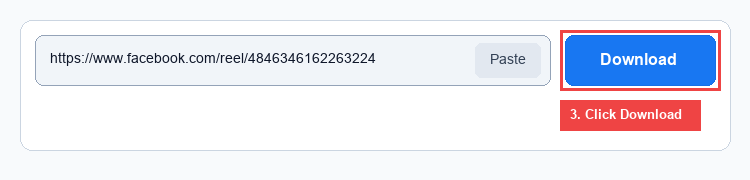
Downloading Facebook Reels on a desktop computer offers the fastest transfer speeds and easiest file management. When working on a laptop or workstation, you can copy full video URLs directly from your browser's address bar and store pristine MP4 files directly into your local folders for video editing, offline archiving, or workplace presentations.
Step-by-Step Desktop Instructions (Chrome, Edge, Safari & Firefox)
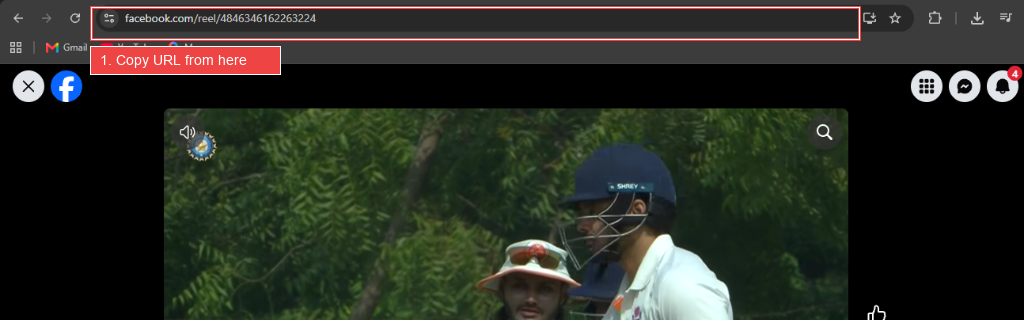
- Step 1 (Copy the Reel URL): Open Facebook on your PC or Mac, navigate to the Reel you want to save, and copy the full URL from your browser's address bar (or click the three dots on the video and select Copy link).
- Step 2 (Paste into Downloader): Visit
facebookreelsdownload.com/download-facebook-reels-pc.html, paste the link into the search box, and click Download to PC. - Step 3 (Select Resolution & Save): Choose 1080p Full HD or 720p HD MP4. Your browser immediately starts downloading the file straight into your local Downloads folder without any popups or waiting queues.
Why Choose a Web Downloader Over Desktop Software or Extensions?
Many traditional desktop video downloaders require you to install suspicious executable (EXE) files or shady browser extensions that ask for permissions to read all your browsing data. Our online downloader operates 100% server-side via direct CDN edge calls. You get maximum fiber speeds without risking system malware or bloatware.
| Feature | facebookreelsdownload.com | Traditional Desktop Software |
|---|---|---|
| Installation | Zero install (runs in any browser) | Requires EXE / DMG installation |
| Security & Privacy | 100% safe, no data tracking | May bundle adware or background services |
| Cross-Platform | Windows, macOS, Linux, ChromeOS | Often limited to specific operating systems |
| Audio Multiplexing | Automatic H.264 + stereo AAC muxing | Often downloads muted video or separate tracks |
Frequently Asked Questions for Desktop Users
Where do saved Facebook Reels go on my PC?
On Windows 10 and 11, files are placed in your user Downloads folder (press Ctrl + J in Chrome or Edge to view recent downloads). On Mac, files land in your macOS Downloads folder accessible via Finder or the Dock.
Can I extract MP3 audio on desktop?
Yes. Switch to the Audio tab in the results card to download the clean 320 kbps MP3 track directly.