Vertical video is the undisputed standard for modern storytelling. Whether you're archiving a viral culinary recipe, an educational fitness workout, or a dynamic travel vlog, saving a Facebook Reel directly to your smartphone's native camera roll or computer filesystem gives you permanent offline access.
In this authoritative guide, we break down the exact, verified steps to download any public Facebook reel on Apple iOS (iPhone/iPad), Google Android, and Desktop PCs/Macs, while ensuring full 1080p resolution and uncompressed AAC audio.
Ready to download immediately?
Use our free, lightning-fast edge downloader tool right now:
Open Reels Downloader ToolHow to Get the Facebook Reel Link (Visual Walkthrough)
Before downloading, you need to copy the video's public URL. You can do this in two easy ways:
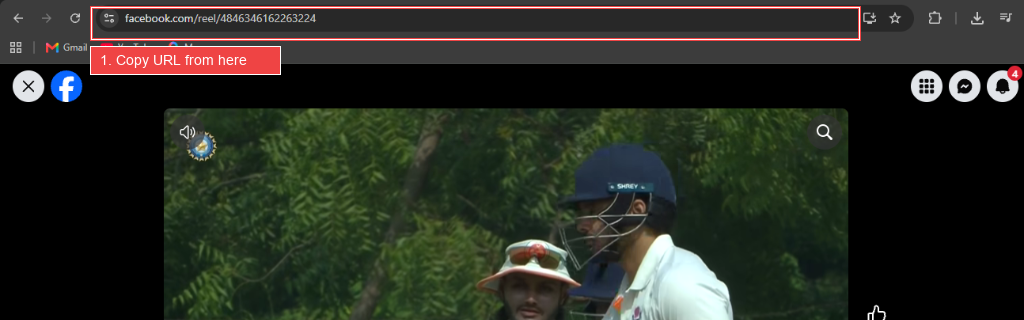
Option A: Copying from the Browser Address Bar (PC/Mac)
Open the Facebook Reel on your desktop computer, highlight the URL in your browser's address bar, and press Ctrl + C (or Cmd + C on Mac):
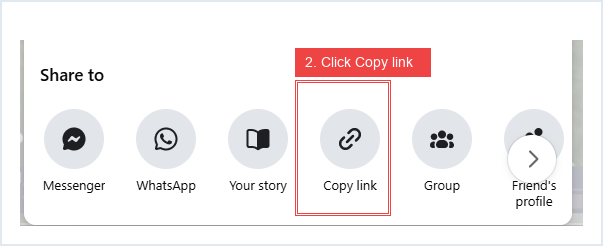
Option B: Copying via the "Share" Button (Mobile App or Web)
On your smartphone or tablet, tap the Share icon on the reel, and then select Copy link from the options:
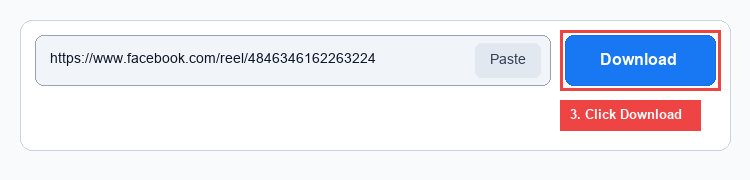
Option C: Paste & Download
Navigate back to facebookreelsdownload.com, paste the link in the box, and press the Download button:
Method 1: Downloading on iPhone & iPad (iOS 13+)
Apple users previously struggled with downloading files due to iOS sandboxing. Fortunately, modern Safari handles direct file downloads seamlessly. Here is the optimal procedure:
- Find the Reel: In the Facebook iOS app, open the Reel.
- Copy its Link: Tap the Share icon on the bottom right and select Copy Link.
- Open Safari: Launch Safari and visit facebookreelsdownload.com.
- Extract: Tap Paste, then hit Download.
- Save: Pick the HD 1080p option. Safari will display a confirmation dialog: "Do you want to download Facebook-Reel.mp4?" Tap Download.
- Move to Camera Roll: Tap the downward download arrow in Safari's address bar. Tap the downloaded video file, tap the bottom-left Share icon, and choose Save Video. The reel is now saved directly in your native iPhone Photos app!
Method 2: Downloading on Android Phones & Tablets
Android offers direct filesystem integration, making it remarkably fast to archive reels:
- Open the Facebook app or mobile browser and navigate to your chosen reel.
- Tap the three dots `...` or the Share button and choose Copy Link.
- Open Chrome (or Samsung Internet) and visit facebookreelsdownload.com.
- Paste the URL and tap Download.
- Choose your preferred resolution tier (HD or SD). The video will instantly download to your device's
Downloaddirectory and appear in Google Photos or your default Gallery app.
Method 3: Downloading on Windows PC, Mac, or Chromebook
For content editors, educators, and video producers working on laptops or workstations:
- Open Facebook in any browser (Chrome, Safari, Edge, Firefox).
- Navigate to the reel you want. Copy the full URL from the browser's address bar or by clicking the three horizontal dots on the video and choosing "Copy link".
- Visit facebookreelsdownload.com.
- Paste the link into the box and click Download.
- Click the green Download HD button to save the pristine `.mp4` file directly to your computer.
Troubleshooting Common Issues
Q: Why does the video download as an audio-only file or fail to open?
Some third-party tools fail to detect multiplexed audio streams when Facebook switches to adaptive bitrate streaming. Our tool specifically queries and bundles the unified progressive H.264 + AAC audio stream, guaranteeing that the downloaded `.mp4` plays on any media player (VLC, QuickTime, Windows Media Player) without codec errors.
Q: Can I download reels from a private account?
No. In accordance with user privacy policies and digital rights management, only reels published with the "Public" privacy icon can be accessed.