
Apple's iOS security sandbox handles file downloads differently than Android. When you download a video on an iPhone or iPad using Safari, iOS first places the MP4 file inside the native Files app (Downloads folder) rather than automatically injecting it into your Camera Roll. Below is the exact 4-step workflow to save any Facebook Reel straight into your iPhone Photos app in Full HD 1080p.
Step-by-Step iOS Safari Instructions (iPhone 11, 12, 13, 14, 15, 16 & iPad)
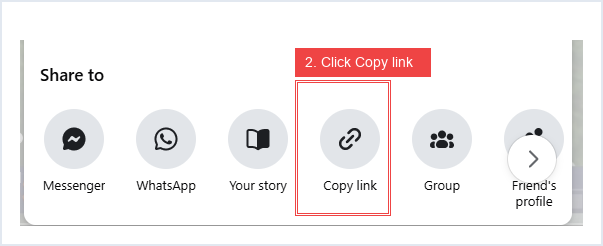
- Step 1 — Copy the Link from the Facebook App: Open the Facebook app on your iPhone, tap the Share button at the bottom-right corner of the Reel, and tap Copy Link.
- Step 2 — Paste into Safari & Download: Open Safari (or Chrome on iOS), visit
facebookreelsdownload.com/download-facebook-reels-iphone.html, tap the Paste button, and press Download to iPhone. Choose 1080p Full HD (MP4) and tap Download when the Safari popup asks for confirmation. - Step 3 — Open the Safari Download Manager: Tap the blue Download Arrow icon located on the left or right side of your Safari address bar, then tap Downloads to view the completed MP4 file.
- Step 4 — Tap "Save Video" to Move to Camera Roll: Tap the downloaded video to preview it, tap the Share icon (square with an upward arrow) in the bottom-left corner, and select Save Video. The Reel is now permanently saved in your iPhone Photos (Camera Roll)!
Why Other Facebook Downloaders Fail on iPhone Safari (And How We Fixed It)
Many third-party downloaders deliver raw VP9 or unmuxed DASH video streams that Apple's QuickTime player inside iOS cannot play—resulting in a black screen or a muted video on iPhone. Our edge multiplexer automatically packages every 1080p and 720p stream into an Apple-certified mp4 (H.264 + AAC) container with proper Content-Disposition: attachment headers so Safari triggers a clean one-tap download every time.